





How to Move Your Website to a New Host in New Zealand (Without Losing Traffic)
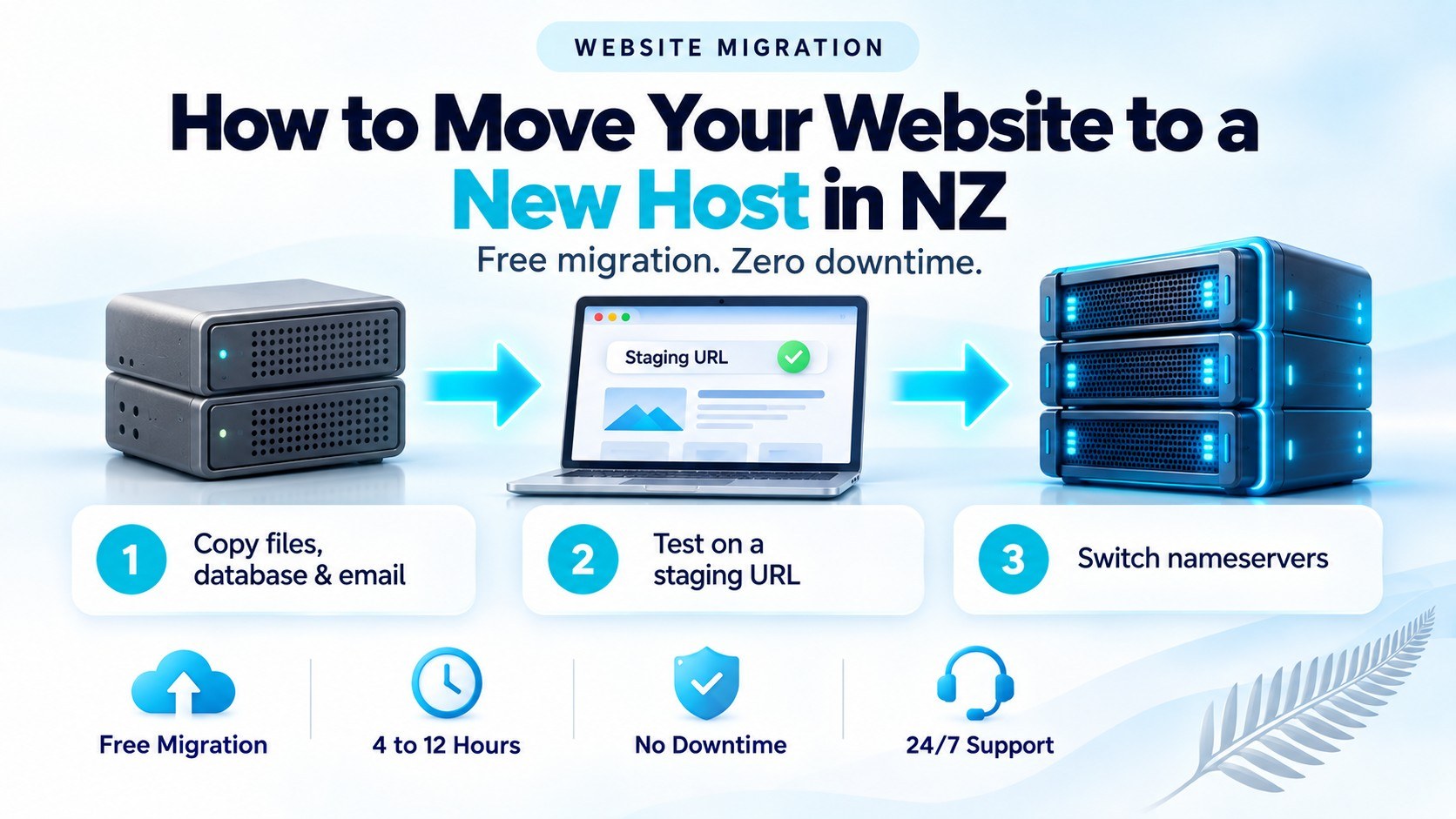
- Can I change the host of my website without breaking it?
- How do you move a website to a new host, step by step?
- How do you migrate a website without losing SEO?
- What should you check before the move?
- What should you check after the DNS switch?
- What usually goes wrong in a website migration?
- How much does it cost to migrate a website?
- What we do when you move to webhosting.co.nz
- Frequently asked questions
Yes, you can move your website to a new host without losing traffic or rankings. On a straight host change your domain and URLs stay the same, so Google sees the same site on a different server. What it takes: a full backup, a rebuild on a staging URL, proper testing, then a DNS switch. Downtime should be zero.
Can I change the host of my website without breaking it?
Yes. Nothing about your site is locked to your current provider. The files, the database and the mailboxes are yours, and any decent host will let you download a full cPanel backup yourself. You don’t need the original developer’s blessing, and you don’t need permission from the company you’re leaving.
One distinction matters, and most guides blur it. Changing hosts means the same domain on a different server. Changing domains means the web address itself changes. The first carries very little SEO risk. The second is where rankings get lost.
How do you move a website to a new host, step by step?
- Back everything up. Take a full cPanel backup on the old server (public_html, the database and the mail directories) and download a copy to a machine you control.
- Copy files and database across. Restore the files, import the database through phpMyAdmin, then update the database credentials in your config file (wp-config.php on WordPress).
- Rebuild on a staging URL. The new host gives you a temporary address, so the site can be loaded, tested and repaired while your live site keeps running on the old server.
- Recreate email before anything else changes. Every mailbox, alias and forwarder built on the new server, then existing mail synced across by IMAP.
- Test on staging properly. Page templates, contact forms, checkout, logins, the .htaccess rules you already had, and the PHP version.
- Lower your DNS TTL to 300 seconds, a day or two before cutover.
- Switch the nameservers. Only once staging is confirmed working.
- Issue SSL and force HTTPS. The free SSL certificate is validated against the live domain, so it comes after the switch, not before.
- Keep the old hosting running for a week. It costs a few dollars and it is your rollback.
Step 3 is the one that matters. If the site is confirmed working on the new server before anything public changes, the cutover is a DNS update. Nothing is ever offline while it is rebuilt. That is the difference between no downtime and minimal downtime.
How do you migrate a website without losing SEO?
This is the half host-written migration pages skip, and the half that costs money.
Do you need 301 redirects?
On a host change only, no. Your domain and every URL stay identical, so there is nothing to redirect. Plenty of guides frighten people into building a redirect map they will never need.
| What is changing | Redirects needed | What to do |
|---|---|---|
| Host only, same domain, same URLs | No | Carry existing .htaccess rules across unchanged |
| Domain change | Yes | Full one-to-one 301 map, then Change of Address in Search Console |
| Redesign with new URLs | Yes | Crawl the old URLs first, map every one to its closest match |
Our stance: don’t redesign and rehost in the same week. Move first, confirm it is stable, then rebuild. If something drops, you will know which change caused it.
Keep the URLs and canonicals honest
Preserve URL structure exactly: same casing, same trailing slashes, same query handling. Then check every canonical tag on the new server points at your live domain. Canonicals left pointing at the staging address are the most common self-inflicted migration wound.
Keep the staging copy out of Google
Password-protect the staging URL or set it to noindex, and check the new server’s robots.txt before cutover. A dev default of “Disallow: /” going live is the fastest way to lose a site from the index. WordPress has its own version of this trap under Settings, Reading, “Discourage search engines”.
Re-verify Google Search Console
Changing nameservers can invalidate DNS TXT verification, so re-verify by HTML file or Google Analytics before you switch. Use Change of Address only for a domain change, never a host move. Then watch the Pages report, Crawl stats and 404s for two to four weeks.
Sitemaps, internal links and structured data
Regenerate the XML sitemap, confirm it returns 200 and lists live https URLs, then resubmit it in Search Console. Search the database for hardcoded absolute links pointing at http or the old temporary URL. Re-test key templates in Google’s Rich Results Test: plugin-generated schema can lose its settings when the plugin is reinstalled rather than copied.
Speed, Core Web Vitals and analytics
Benchmark LCP and TTFB on your five most important URLs before the move, and re-test the same five after. New server, new PHP version, new caching stack. Turn the CDN on. Check the GA4 tag survived, since tags pasted into a theme header often don’t when a theme is reinstalled, and annotate the migration date.
Even a clean move can wobble for a few days while Google recrawls; small daily swings are normal. A drop of more than roughly 20% still there after two weeks is a fault, not a wobble.
What should you check before the move?
- Full backup of files, database and email, downloaded to your own machine
- Crawl the live site and save the URL list (Screaming Frog is free to 500 URLs)
- Record current PHP and MySQL versions and any non-standard modules
- List every cron job: they live in the server config, not in your files
- List every mailbox, alias and forwarder
- Save DNS records you would otherwise lose: MX, SPF, DKIM, DMARC, verification TXT
- Benchmark LCP and TTFB on five key URLs
- Drop DNS TTL to 300 seconds, 24 to 48 hours out
- Check the domain is not locked or expiring, and that you can log in to the registrar
What should you check after the DNS switch?
- Site loads over https with a valid certificate and no mixed-content warnings
- Test email sent and received both ways, from an outside address
- Contact forms and checkout tested end to end
- robots.txt correct, no stray noindex left on
- Sitemap regenerated, returning 200, resubmitted in Search Console
- Re-crawl and diff against the pre-move URL list: every 200 should still be a 200
- Cron jobs recreated and confirmed running
- Search Console verification still valid, GA4 showing live traffic
- Old hosting kept alive for 7 to 14 days
What usually goes wrong in a website migration?
Email is the usual casualty. MX records follow the nameservers, so mail starts arriving at the new server the moment DNS updates, and bounces if the mailboxes are not already there. Worse, anyone using POP3 with mail stored only on the old server loses it the day that account is deleted. Mailboxes first, IMAP sync second, old host live for a fortnight.
DNS TTL catches people out. A 24-hour TTL means some visitors keep hitting the old server for a full day after the switch.
Cron jobs never travel with the files. Backups, invoice runs, feed imports, cache warmers: nobody remembers them until the invoices stop going out.
SSL certificates do not move either. A new one is issued on the new server, and a free SSL certificate can only be validated once DNS points there. Force HTTPS after the certificate exists, not before.
PHP version mismatch is the quiet one: a site built for PHP 7.4 can throw fatal errors on PHP 8.3. Staging catches it.
How much does it cost to migrate a website?
With us, migration is free on request: files, database and email. Most NZ hosts offer free migration to new customers, but the small print varies: some cap it at one site, some charge per mailbox. Ask before you sign.
The real cost is the hosting. Our shared hosting plans start at $4.49 per month including GST, and WordPress hosting starts at $5.99 per month. Both renew at the price you signed up at. Free SSL, free CDN, DDoS protection, automatic malware scans, on-demand backup, cPanel and a website builder are included.
Moving the domain registration is a separate job: domain transfers and registration are priced separately.
What we do when you move to webhosting.co.nz
Migration is free, on request, and usually takes 4 to 12 hours rather than the 24 to 48 hours quoted elsewhere. We move files, database and email together. We rebuild your site on a staging URL, confirm it works, and only then switch the nameservers, which is why we say no downtime rather than minimal downtime.
Your site then runs on our global data centres and CDN locations, including Sydney and Singapore.
Support is a Kiwi team in Hastings, available 24/7/365, and billing is NZD with GST included. Most migrating small business sites land on our web hosting plans, where everything each plan includes is listed in full. Call +64 022 547 6114 or request your free migration to get started.
Frequently asked questions
Can I transfer a website to a new host?
Yes. You need access to the files, through cPanel or FTP, and control of the domain’s DNS. The registrar login matters most. If an old developer holds file access and won’t respond, say so early. We will be straight about what is recoverable.
Can I change the host of my website?
Yes, at any time, with no permission from your current provider. Check whether you have prepaid hosting still to run, and whether the domain is registered with the same company.
How much does it cost to migrate a website?
Ours is free on request. Across New Zealand it ranges from free for new signups to a few hundred dollars for a complex or multi-site move. The ongoing cost is the plan, from $4.49 per month including GST.
How do you migrate a website without losing SEO?
Keep the URLs identical, keep the staging copy out of Google, re-verify Search Console after the nameserver change, resubmit the sitemap, and watch 404s and crawl stats for a month. On a host-only move you do not need 301 redirects.